
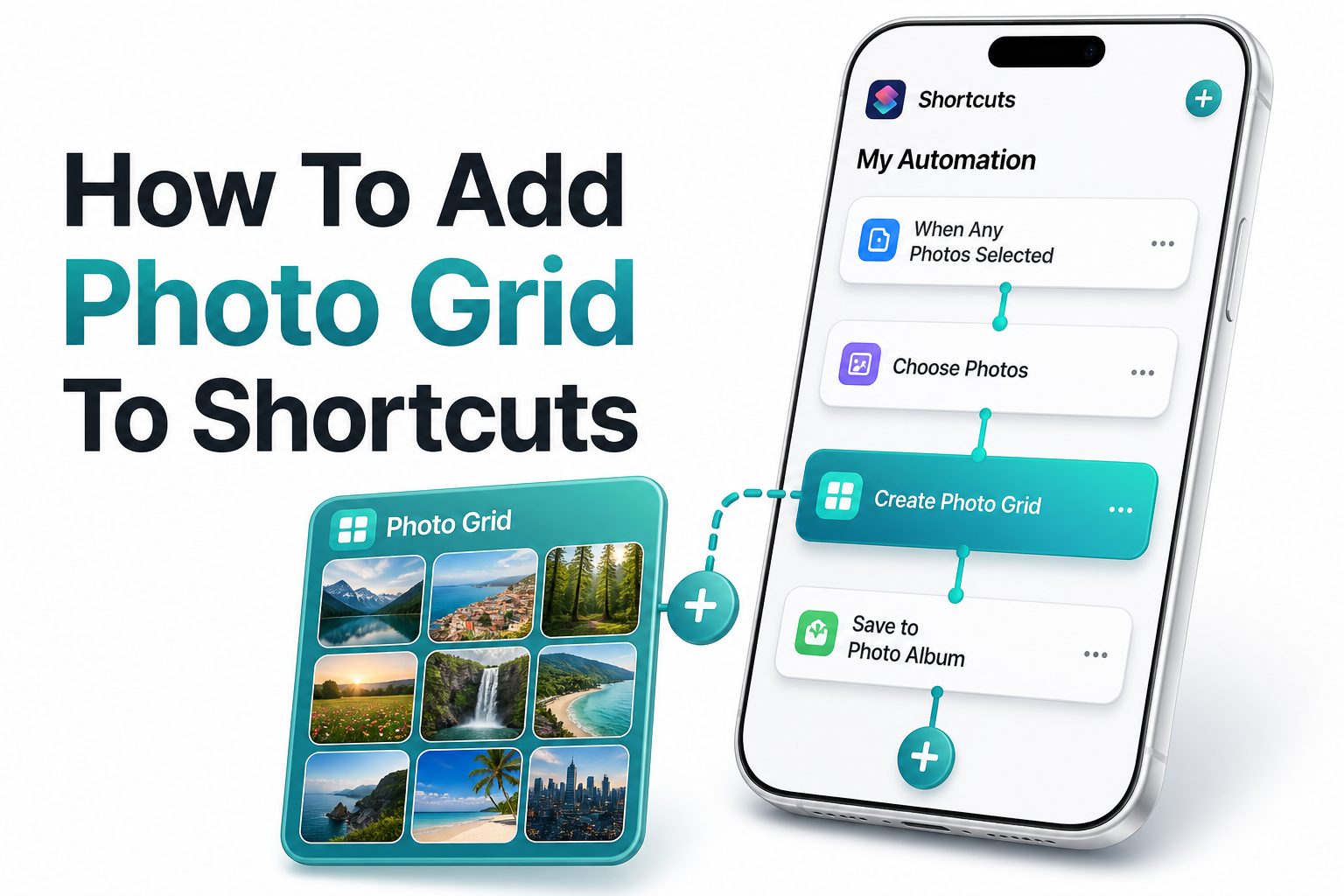
Making a clean collage on an iPhone should not require a separate design app every time. If you want a quick way to combine several images into one shareable layout, Apple’s Shortcuts app can do the job with the Photo Grid shortcut or a custom automation built from photo actions. Learning how to add photo grid to shortcuts helps you turn scattered pictures into a neat image grid in just a few taps.
This is especially useful for travel photos, product shots, before-and-after comparisons, mood boards, social posts, and family updates. Instead of opening a photo editor, importing images, choosing a layout, and exporting manually, you can create a repeatable shortcut that asks for photos, arranges them, and saves or shares the result. Once set up, the process feels simple, fast, and reliable.
Why Photo Grid Belongs in Shortcuts
Photo Grid is useful because it turns a common editing task into a repeatable action. You choose multiple images, run the shortcut, and get one combined image that is easier to share in Messages, Mail, Notes, or social apps.
The Shortcuts app is built around actions, which Apple describes in its Shortcuts User Guide as the individual steps that make a shortcut work. That action-based structure is ideal for photo tasks because selecting, arranging, previewing, saving, and sharing can all happen in one flow.
What You Need Before Creating a Photo Grid
You need an iPhone or iPad with the Shortcuts app installed, access to the Photos app, and permission for Shortcuts to read selected images. Most recent iOS and iPadOS versions include Shortcuts by default, but deleted apps can be reinstalled from the App Store.
You should also decide how you want the finished grid to behave. Some users want it saved automatically to Recents, while others prefer a preview first. That choice affects which actions you add after the grid is created.
Quick Setup Checklist
- Open the Shortcuts app and check the Gallery first.
- Search for “Photo Grid” or “Grid” in Shortcuts.
- Allow Photos access when prompted.
- Test the shortcut with three or four images.
- Choose whether to save, preview, or share the finished grid.
- Rename the shortcut so it is easy to find later.
- Add it to the Home Screen if you plan to use it often.
Adding Photo Grid from the Shortcuts Gallery
The fastest option is to check whether Photo Grid is available in the Shortcuts Gallery. Open Shortcuts, tap Gallery, and use the search field to look for Photo Grid. If it appears, tap it and add it to your shortcuts.
After adding it, run the shortcut once with a small group of photos. This first test matters because iOS may ask for access permissions. Approve access only to the images you select or to your photo library, depending on your privacy preference.
Creating a Photo Grid Shortcut Manually
If the Gallery option is missing, you can still build a similar shortcut manually. Start a new shortcut, add an action that selects photos, and enable multiple selection. This gives the shortcut the images it needs for the collage.
Next, add an action that combines or arranges images into a grid if available in your Shortcuts action list. Then add Quick Look, Save to Photo Album, or Share, depending on what you want to happen after the grid is created.
Photo Grid Options Compared
Option | Best For | Main Advantage | Limitation
Gallery shortcut | Fast setup | Minimal configuration | May not appear for every user
Manual shortcut | Custom workflows | More control over saving and sharing | Takes longer to build
Share Sheet shortcut | Editing from Photos | Works directly from selected images | Requires setup in shortcut details
Home Screen shortcut | Frequent use | One-tap access | Still requires image selection
Choosing the Right Photo Selection Method
The Select Photos action is the most flexible starting point. It lets you choose images each time you run the shortcut, which works well when every collage is different. Make sure multiple selection is turned on, or the grid will only receive one image.
You can also configure the shortcut to receive photos from the Share Sheet. This is helpful when you are already inside the Photos app. Select your images, tap Share, choose the shortcut, and let it create the grid from those selected items.
Setting the Grid Layout and Image Order
Image order usually follows the order in which photos are passed into the shortcut. If you select photos manually, tap them in the sequence you want them to appear. For comparison grids, this simple habit keeps the result clean and logical.
Some grid actions may offer layout controls such as horizontal, vertical, or grid-style arrangement. If your Shortcuts version shows spacing or sizing options, test them with different photo counts. A layout that works for four images may look cramped with nine.
Useful Layout Tips
- Use four photos for a balanced square-style grid.
- Use six photos for event recaps or product comparisons.
- Keep screenshots together if mixing them with camera photos.
- Avoid combining portrait and landscape images unless cropping is acceptable.
- Put the strongest image first when the grid will be shared socially.
- Use similar lighting and color tones for a cleaner final collage.
Saving the Finished Photo Grid
To save the result automatically, add a Save to Photo Album action after the grid action. Choose Recents or a specific album if you keep edited images organized. This makes the shortcut behave like a small photo editing tool.
If you prefer control, add Quick Look before saving. Quick Look opens a preview so you can inspect the grid before keeping it. This is useful when photo order, cropping, or spacing matters and you do not want extra test files in Photos.
Sharing the Grid Without Saving First
Many people create photo grids for quick sharing, not long-term storage. In that case, add a Share action after the grid is created. The iOS share sheet will open, letting you send the collage through Messages, Mail, AirDrop, Notes, or another app.
This approach keeps your Photos library cleaner because the final grid is not saved unless you choose to save it from the share sheet. It is a good setup for temporary collages, quick updates, and work-related image summaries.
Best Uses for a Shortcut Photo Grid
- Showing before-and-after edits.
- Comparing products or outfits.
- Sharing travel highlights in one image.
- Creating quick social media collages.
- Grouping receipts or visual records.
- Making study, design, or recipe reference boards.
- Sending several family photos without flooding a chat.
Adding Photo Grid to the Home Screen
Once the shortcut works, adding it to the Home Screen can save time. Open the shortcut details, choose Add to Home Screen, rename it if needed, and select an icon or image that makes the purpose obvious.
A Home Screen icon is helpful if you make collages often. Instead of opening Shortcuts and searching your library, you tap the icon, choose images, and run the workflow. Apple also explains Home Screen shortcut setup in its Shortcuts guide at https://support.apple.com/guide/shortcuts/.
Using Photo Grid from the Share Sheet
A Share Sheet setup feels more natural for people who start in Photos. Open the shortcut settings and enable it to appear in the Share Sheet. Set the accepted input type to images so it only appears when photo files are available.
After that, select several images in Photos, tap the share icon, and choose your grid shortcut. This workflow is efficient because you do the picking first, then run the automation. It also reduces confusion when managing large photo libraries.
Home Screen Versus Share Sheet Access
Access Method | Best Use | Speed | Control
Home Screen | Starting from scratch | Fast | Good
Share Sheet | Starting inside Photos | Very fast | Better image order control
Shortcuts app | Editing the workflow | Moderate | Best for testing
Siri | Hands-free start | Fast | Less precise for photo selection
Fixing a Missing Photo Grid Shortcut
If you cannot find Photo Grid in the Gallery, do not assume your device is broken. Gallery shortcuts can vary by region, iOS version, device setup, and account history. Search for related terms such as collage, photos, images, or grid.
If nothing appears, build the shortcut manually with photo selection, grid or image-combining actions, and a save or share action. The result can be just as practical, and it gives you more control over the final behavior.
Solving Photo Permission Problems
Shortcuts may ask for permission the first time it accesses Photos. If the shortcut fails or shows no images, open Settings, find Shortcuts, and review Photos permissions. Limited access can work, but the selected images must be available.
If you recently changed permissions, run the shortcut again from the beginning. Some shortcuts fail because an action received no image input, not because the grid action itself is faulty. Testing with two simple photos helps isolate the issue.
Common Problems and Fixes
- No photos appear: Check Photos permission for Shortcuts.
- Only one image is used: Turn on multiple selection.
- Grid saves nowhere: Add Save to Photo Album.
- Grid opens but does not share: Add a Share action.
- Images appear in the wrong order: Select photos in the desired sequence.
- Shortcut missing from Share Sheet: Enable Share Sheet support in shortcut details.
- Output looks cropped: Use images with similar orientation.
Making the Shortcut Easier to Reuse
A good shortcut should have a clear name, a recognizable icon, and a predictable ending. Names like Make Photo Grid or Create Collage are easier to find than vague titles. Keep the wording short if you add it to the Home Screen.
You can also duplicate the shortcut and make versions for different tasks. One version might save to Photos, another might open the share sheet, and another might create grids only from Share Sheet input. Small variations can reduce daily friction.
Using Albums for Better Organization
If you create photo grids for work, content planning, or client projects, saving every collage to Recents can get messy. Create a dedicated album in Photos, then point the Save to Photo Album action to that album.
This is helpful for bloggers, sellers, designers, and social media managers who need to find finished collages later. A dedicated album also separates final grid images from the original source photos, which makes cleanup easier.
Practical Workflow Ideas
- Create a “Listings Grid” shortcut for marketplace product images.
- Create a “Travel Grid” shortcut that saves to a vacation album.
- Create a “Before After Grid” shortcut for two-image comparisons.
- Create a “Quick Share Grid” shortcut that opens the share sheet only.
- Create a “Work Proof Grid” shortcut for receipts, site photos, or visual records.
Improving Photo Grid Quality
The quality of the final grid depends heavily on the source images. Use sharp photos, avoid heavy screenshots mixed with camera shots, and keep image orientation consistent when possible. A clean set of source images usually produces a cleaner grid.
If your shortcut includes resizing options, avoid reducing images too aggressively. Smaller files share faster, but they may look soft when viewed full screen. For social posting, test one saved grid before using the shortcut for important images.
When to Use a Dedicated Collage App Instead
Shortcuts is best for speed and repeatable layouts. If you need stickers, text overlays, custom borders, brand templates, or advanced cropping, a dedicated collage or design app may be more suitable. Shortcuts keeps the process simple by design.
That said, many everyday photo grid tasks do not need a full editor. For quick comparisons, family updates, visual notes, and social previews, Shortcuts is often faster because the workflow starts and finishes inside iOS.
Shortcuts Versus Collage Apps
Feature | Shortcuts | Collage App
Speed | Excellent after setup | Good
Design control | Basic | Strong
Automation | Strong | Limited
Text and stickers | Limited | Strong
Saving and sharing | Flexible | Flexible
Best audience | Practical iPhone users | Visual content creators
Adding Helpful Prompts to the Shortcut
Prompts can make the shortcut easier to use later. For example, an Ask for Input action can let you choose whether to save or share the grid. A Choose from Menu action can offer options such as Preview, Save, or Send.
This keeps one shortcut from becoming too rigid. Instead of maintaining several versions, you can build one flexible photo grid tool. Just keep menus short, because too many prompts can slow down a workflow that should feel quick.
Privacy and Local Photo Handling
One reason people like Shortcuts for photo grids is that the workflow can stay on the device. You are selecting photos from your own library and creating a local image output. That is different from uploading pictures to a web-based collage tool.
Still, permissions matter. Review what the shortcut can access, especially if you download shortcuts from outside the Gallery. For personal photos, family images, documents, or client visuals, use shortcuts you trust and inspect the actions before running them.
Smart Privacy Habits
- Review all actions before running a downloaded shortcut.
- Avoid shortcuts that upload photos unless you need that feature.
- Use limited Photos access when appropriate.
- Remove shortcuts you no longer use.
- Rename trusted shortcuts clearly.
- Keep sensitive photo grids in a private album if needed.
- Share final grids only through apps you trust.
Troubleshooting Layout Issues
If the final image looks awkward, test with fewer photos first. Four images are easier to arrange than seven or eight. Once the shortcut behaves properly with a small set, try larger selections and check whether the layout still looks balanced.
Mixed image sizes can cause unexpected cropping or empty space. If you want a polished grid, choose photos with similar orientation and subject distance. For example, four portrait photos usually look cleaner together than two portraits, one screenshot, and one wide landscape.
Building a Better Workflow Over Time
Your first version does not need to be perfect. Start with selecting photos, making the grid, and previewing the result. Once that works, add saving, sharing, album selection, or a menu. This keeps setup manageable and easier to fix.
As you use the shortcut, pay attention to repeated actions you still do manually. If you always save the grid after previewing, automate that step. If you always share it, make sharing the default and skip unnecessary prompts.
Helpful Related Resources
- [Internal Link: iPhone Shortcuts Tips]
- [Internal Link: Photo Editing on iPhone]
- Apple Shortcuts User Guide: https://support.apple.com/guide/shortcuts/
Conclusion
Creating a photo grid on iPhone does not have to involve extra apps or repeated manual editing. Shortcuts gives you a practical way to select several photos, arrange them into one image, preview the result, and save or share it in a few taps. Whether you start from the Gallery, build your own workflow, or run it from the Share Sheet, the key is choosing a setup that matches how you handle photos day to day.
For occasional use, a basic shortcut with Select Photos, grid creation, and Quick Look may be enough. For frequent use, add Home Screen access, album saving, or a sharing menu. Once you know how to add photo grid to shortcuts, you can turn a small iPhone feature into a reliable tool for social posts, comparisons, visual notes, and everyday photo sharing.
FAQ
Can I make a photo grid without a third-party app?
Yes. The Shortcuts app can create a photo grid using built-in photo actions when available. You can select images, combine them into a grid, preview the output, and save or share it from iOS.
Why is Photo Grid missing in Shortcuts?
Photo Grid may not appear in the Gallery for every device, region, or iOS setup. Search related terms first. If it still does not appear, create a manual shortcut using photo selection and image-combining actions.
Can I add Photo Grid to my Home Screen?
Yes. Open the shortcut details, choose Add to Home Screen, adjust the name and icon, then tap Add. This creates a shortcut icon you can launch like an app.
Can Photo Grid work from the Photos app?
Yes. Enable the shortcut in the Share Sheet and set it to accept images. Then select photos in the Photos app, tap Share, and run the shortcut from the sharing options.
How many photos work best in a grid?
Four to six photos usually create the cleanest results. Larger sets can work, but the images may become smaller or harder to view. Similar orientation and lighting help the final grid look better.
0 Comments